Find your frame.
Crop, rotate, flip and straighten. Choose a portrait, square or landscape ratio.
PHOTO + VIDEO · iOS & ANDROID
A fresh look for your photos and videos. A home for the moments you save. And a shorter way to your next share.

Free to download. Optional OVF Pro subscriptions.
Take a look inside
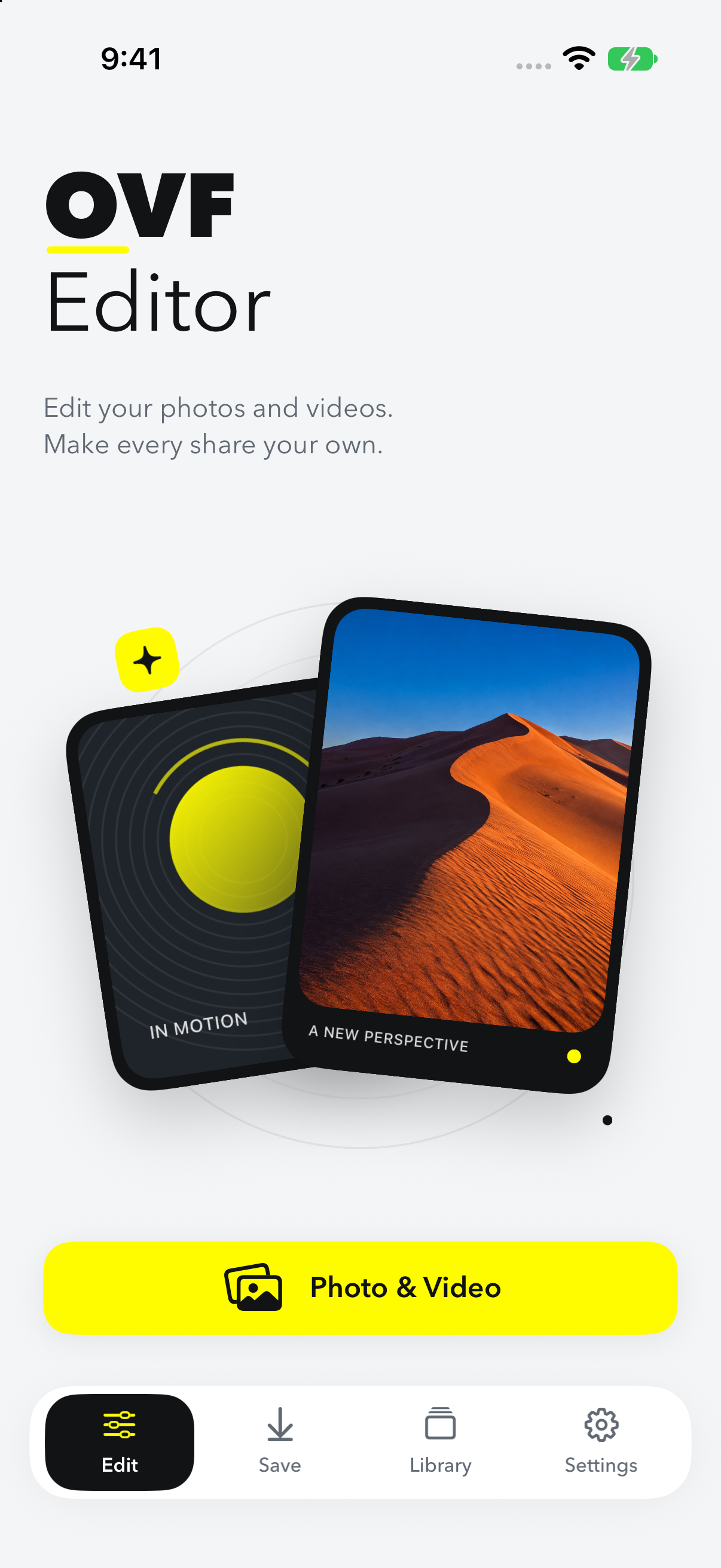
A LITTLE MORE ROOM TO CREATE
Start with a photo, a video or a supported link. Keep it, make it your own, then choose what happens next.
01 / SAVE
Paste a supported link, see what’s inside, and choose the photos or videos you want to keep.
Save media you own or have permission to download. Access and available quality depend on the source.
Which links work?3

02 / LIBRARY
Your saved and imported media, newest first. Open a group to see its items, play a video, or take a closer look at a photo.
Library is stored on your device. Export important files to Photos or Files before deleting the app. Finished edits aren’t automatically added back to Library.
03 / EDIT
Shape the frame, find the color, soften the focus. Make small changes that feel like you.
ORIGINALWARM
An illustrative color preview. Effects in the app may vary.
Crop, rotate, flip and straighten. Choose a portrait, square or landscape ratio.
Explore filters and adjust light, color and detail. Add focus effects and fine-tune the result.
Trim video and adjust its audio. Compare your edits and use undo or redo as you go.
Basic includes a selection of tools. OVF Pro unlocks the premium filters, adjustments and focus controls.
04 / SETTINGS
Useful controls in one place. No digging around.
Choose from 15 app languages, including English and Arabic. The layout follows your reading direction.
See Library usage, review large items and clean eligible temporary files without deleting saved media.
Revisit Ad Privacy Choices where available. Read the privacy policy and manage your Pro subscription.
See permission status and choose whether to enable alerts. Notifications are optional.
OVF PRO
Make every edit your own, with the full collection of tools and an OVF experience without ads.
Explore Pro in the appFind your lookUnlock the full photo and video filter collection.
Fine-tune the detailsGet every premium adjustment and focus control.
Create without interruptionsRemove ads inside OVF Editor.
Auto-renewing monthly or yearly plans. Prices, renewal terms and eligible offers are shown in the app. Manage or cancel through the store you purchased from. Save and Library are also available in Basic.
Subscription details ↗A FEW GOOD ANSWERS
Need a hand with something else?
We’re an email away.
The app brings Edit, Save, Library and Settings together. Preview media from a supported link, save selected items locally, then share, edit or save a copy to your photo library. You can also choose from 15 app languages, manage storage and revisit the Quick guide. The same core experience is designed for iOS and Android.
Save supports compatible public social media links to photos, videos, short videos, multi-item posts and current or saved stories. You can also use direct photo or video links. Support varies by source and content type; stories must be accessible without signing in. Private or login-required media, current livestreams, playlists and protected content are not supported. Not every public link will work. Only download content you own or have permission to save.
Preview and select the items you want, up to 100 per collection. Saving one creates a single Library item; saving several creates one ordered group. A link to a specific item selects that item when it can be identified and brings it into view. Otherwise the app asks you to choose. You can share multiple files or a whole group through your device’s share sheet. Saving into Library does not automatically copy files to your photo library.
Save starts with the best compatible variant offered by the source and lets you choose when alternatives are available. It does not upscale or recompress downloaded files. Source compression still applies, and the highest available resolution can differ between links. Separate stickers or overlays may be missing, and photo-post music is not added to saved still images. Edited output can use different format, size or compression settings.
Keep OVF open while downloading. Moving it to the background stops the current transfer; return and retry. A completed save stays in Library. In the same session, retrying an unchanged selection can reuse completed downloads and retry unfinished items. If the final Library save fails, retry without downloading the retained files again. Closing the workflow or changing the selection or quality can clear that recovery state.
Library stores independent copies on your device. Its saved media can be included in normal device backups, but OVF has no cloud-sync or backup service. Settings → Storage shows usage and can remove eligible temporary files; it does not delete Library media. Deleting a Library group removes all its members after confirmation, without deleting originals in Photos or Files. Export important items before deleting the app.
Share offers a direct social media destination and More for a single file. More opens your device’s share sheet; several files or a group go straight there. You finish sharing in the receiving app. Cancelling keeps your selection. Edit opens one item in the editor and leaves the saved original unchanged. Finished edits are not automatically added to Library. Save copies the chosen photo or video to your device’s photo library, with any required permission and today’s save date. Sharing alone does not create that photo-library copy.
Use supported still images or playable videos. Unchanged JPEG/PNG and MP4/MOV files can be preserved; other supported still formats, such as HEIC, can be converted for editing or sharing. Animated images and Live Photo motion pairs are not supported as complete animations. Edited output may not retain all RAW/HDR detail or metadata. Very large, damaged or incompatible files can fail, and sharing destinations have their own limits.
Basic includes ads and a selection of editing tools, plus Save and Library. Active Pro unlocks premium editing tools and removes OVF ads. Current monthly/yearly prices and any eligible offer appear before your store asks you to confirm. Manage Pro in OVF Settings. Cancel renewal in Apple’s subscription settings or Google Play subscriptions, using the store where you purchased. Deleting the app does not cancel a subscription. Pro normally continues until the entitlement expires; ads and premium locks then return, while Library files remain.
Use the same store account that made the purchase. Active, verified subscriptions, including supported legacy plans, continue to provide Pro; updating does not cancel them. On iOS, access is checked automatically and Restore Purchases is available if it does not return. For Google Play, check that the subscription is active on the Google Account used on your device. A connection or store sign-in may be needed. Subscriptions do not automatically transfer between the App Store and Google Play.
Open Settings in OVF. Language changes apply immediately. Notifications shows permission status and offers the relevant permission/settings action. Ad Privacy Choices is available when required for your region, including with Pro. Tracking remains an iOS permission. Analytics and diagnostics are enabled; ad privacy choices do not disable every measurement service. You can replay the Quick guide from page one at any time. Read what each control does or request an advertising opt-out.
Check your connection and available storage, try a readable local copy, and let cloud-stored media download first. Expired, restricted or unsupported links may not work. Preview and inspect the result before sharing. If Library reports a problem, do not delete the app to troubleshoot—you could lose its local files. Email your app version, device and error wording for help; avoid sending private media, passwords or payment details.
YOUR MOMENTS. YOUR POINT OF VIEW.
For iPhone, iPad and Android. Get the latest version from your store.